features · Oct 27, 2016
How to migrate to Quire? Copy and paste.
Last updated: July 20, 2026
Quire's copy-paste import handles text editors, Gmail, Excel, and CSV. Multi-line text becomes multiple tasks (one per line), email becomes a single task with subject and body, spreadsheet columns map to task fields, and nested tasks work via Parent + ID columns. Faster than JSON import for smaller migrations.
Many of you have asked about a way to import your work from a different app into Quire, without going through the trouble of entering them one by one. (Need to go the other way and get a Quire project into a spreadsheet instead? See Turn Your Projects into Customizable Reports in Excel.)
Now, we have the answer: Copy and paste.
The pattern matters more than the tool. Most knowledge work starts in one of three places (a chat thread, a doc, or a spreadsheet) and the friction in moving it to a task system is what kills adoption of new PM tools. Asana's Anatomy of Work report keeps surfacing the same pattern across years of surveys: knowledge workers spend a significant slice of every week on "work about work" instead of work itself, and a chunk of that is just retyping things that already exist somewhere else. Quire's copy-paste import is built to close that gap.
Be it an Excel sheet with data, a Word document of bullet list, or an email from your coworker, you can easily move them to Quire and continue where you left off, such as breaking down ideas into step-by-step tasks to easily keep track of them and collaborate with your team.
Here are a few examples:
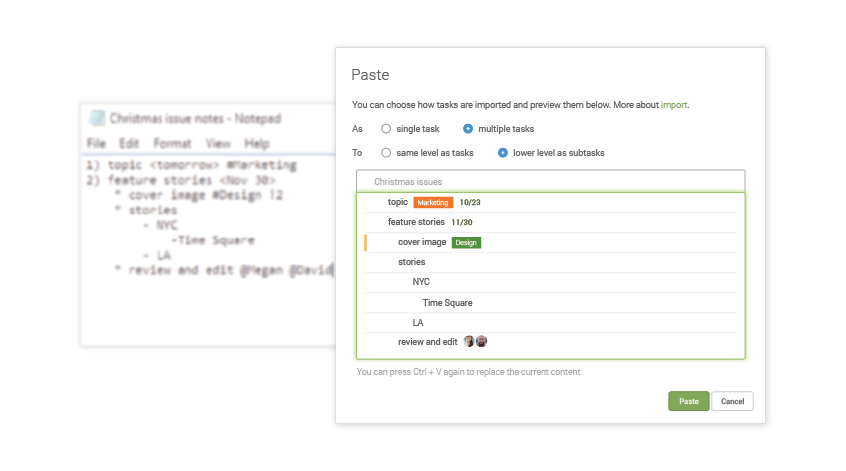
How do you copy-paste from a Text Editor into Quire?
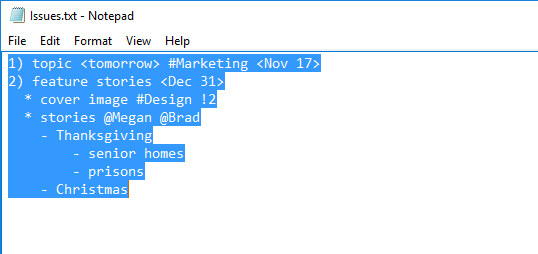
You may have a bullet list or notes in text editors such as Notepad and Word.
First, you press Ctrl + C (Cmd + C for Mac) or right click to copy the content.
Next, you go to your Quire project, click on a task and right click to select Paste.
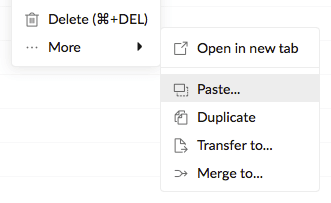
Tip: You can skip this step by simply pressing Ctrl + V (or Cmd + V for Mac) to paste what you copied in a Chrome, Firefox or Microsoft Edge browser.
Then, you press Ctrl + V (Cmd + V for Mac) or right click to paste what you copied for preview.
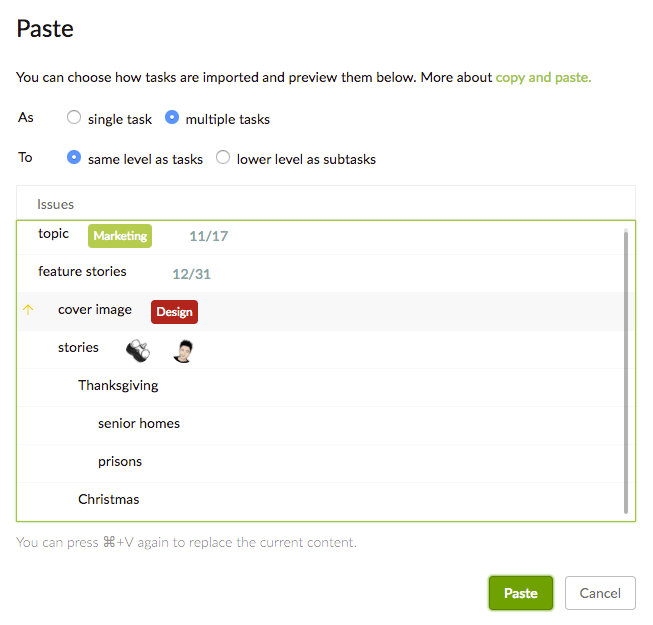
By default, we recognize the list as multiple tasks, with each line being the name of each task and subtask.
We also automatically translate texts like <tomorrow>, #Marketing, @Megan and !2 into due date, tag, assignee and priority, and omit unnecessary numbers, characters and punctuation marks like “-” and “*” which are supported by Markdown. Those are the same inline shortcuts you'd type by hand when adding a task directly.
If you manually select single task, we will recognize the list you pasted as a single task, with the first line as its name and the rest as its description.
Note: The @assignee and #tag you typed must already be your project members and tags to be added.
How do you copy-paste from Gmail into Quire?
If you want to turn an important email into a task, here is what you do.
You copy the subject and its content.
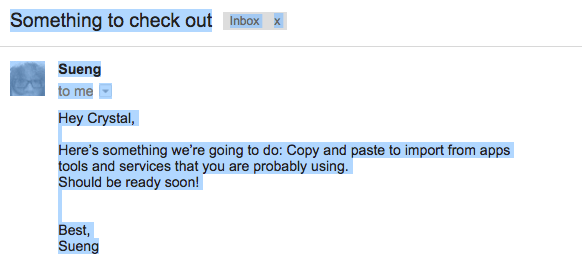
Then, you go to Quire to paste it.
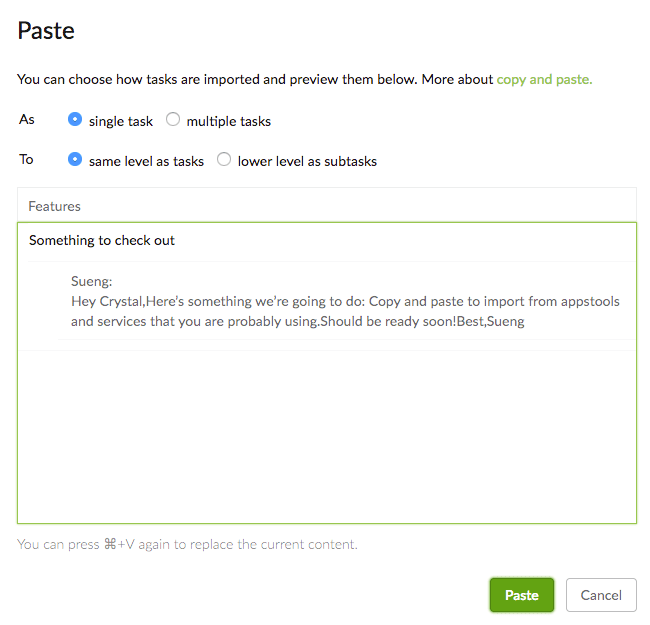
By default, we recognize what you pasted as a single task, with the subject as its name and the content as its description.
We also automatically omit the unnecessary detail like “to me” and “5:25 PM (23 hours ago).”
If you manually select multiple tasks, we then recognize the content you pasted as multiple tasks, with each line being the name of each task.
For other email service providers including Hotmail and Outlook, we will recognize what you pasted as multiple tasks, with each line being the name of each task.
How do you copy-paste from a Spreadsheet into Quire?
First, you copy the header and content in an Excel, Google Sheets or other spreadsheet applications.
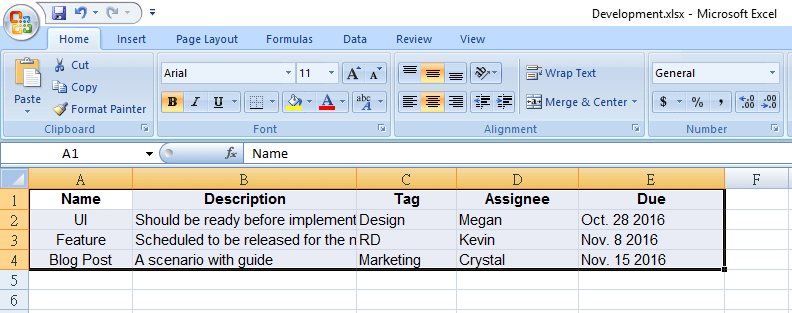
Then, you go to Quire to paste what you copied for preview.
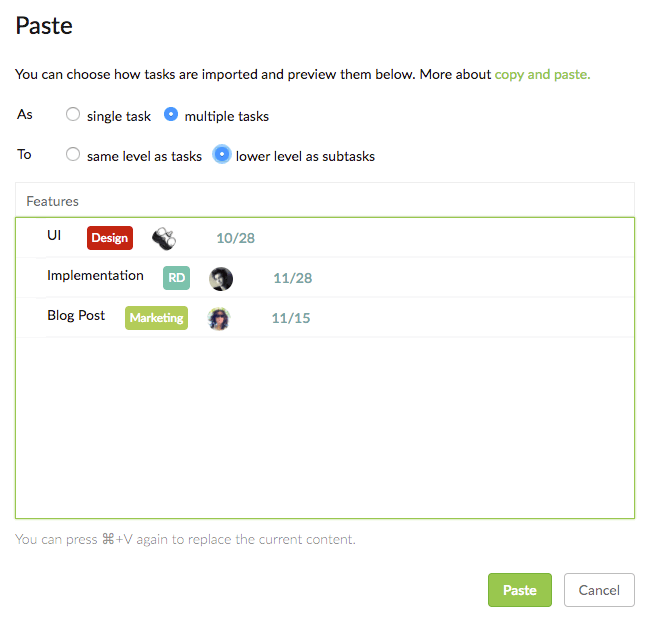
By default, we recognize what you pasted as multiple tasks, with each row being the name, attributes and description of each task.
Only columns called Name, Assignee, Tag, Start, Due, Priority, Status, Description, Parent and ID, in no particular order, and the cells below them are recognized. The rest is omitted.
Note: The header column names must be exactly the same with the first letter capitalized.
You can create a tree structure with tasks and subtasks by adding a column called Parent.
For the column Parent to be recognized, you need to have another column called ID.

Under the column ID, you first assign an ID to the parent task.

Then, you go to the task you want to make as the subtask, and enter the parent task ID you have just assigned under the Parent column.

Ta-da! Now you have a tree structure with tasks and subtasks. That's the same nested task hierarchy Quire uses everywhere else, just built in bulk from a spreadsheet instead of by hand.
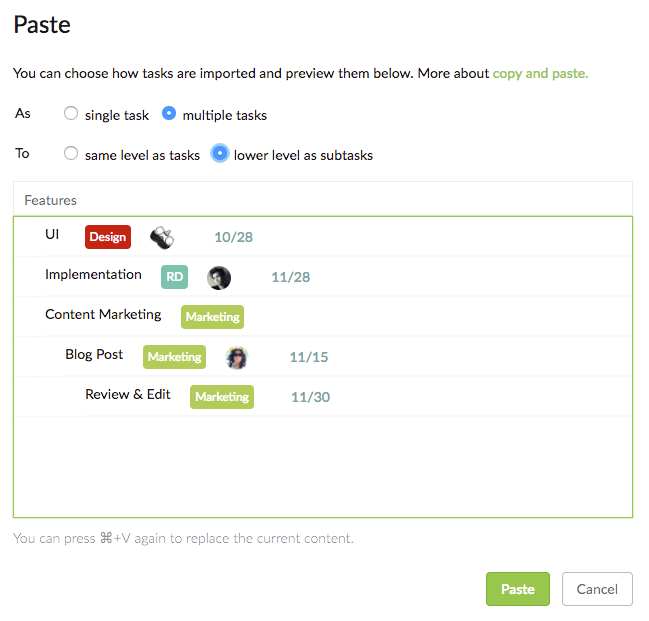
If you manually select single task, we will recognize the data you pasted as a single task, with the first line as its name and the rest as its description.
Also, keep in mind that if a task has more than one assignee or tag, you need to have a column for each assignee or tag. Each column will have the same header name (Assignee or Tag).
Note: What you typed under columns Assignee and Tag must already be your project members and tags to be added.
When you paste from Excel, there are two limitations to keep in mind:
Date Format.
For columns Start and Due to be recognized, you need to enter dates in the format of the country you selected in your Account Settings. For example, if you selected English (United States), the date format should be Nov 18, 2016. In this example, 11/18/2016, 11-18-2016 and 11.18.2016 are recognized too.
Priority.
For column Priority to be recognized, you need to enter Low, Medium, High or Urgent (not case sensitive).
How do you import CSV data into Quire?
With a CSV file, it is the same as copying and pasting from a spreadsheet file.
Once again, only those called Name, Assignee, Tag, Start, Due, Priority, Status, Description, Parent and ID and what is below them are recognized.
And keep in mind that if a task has more than one assignee or tag, you need to have a column for each assignee or tag. Each column will have the same header name (Assignee or Tag).
Note: What you typed under columns Assignee and Tag must already be your project members and tags to be added.
In short, we have made migration quick and easy. With copy and paste.
You can now bring your work into Quire, from apps or services that you are probably using everyday, including Excel, Word and Gmail, and get it rolling with your team in just seconds! Starting a new project instead of migrating one? Quire's templates get you rolling just as fast.
Frequently Asked Questions
How do you migrate data to Quire by copy and paste?
Copy from a text editor, Gmail, Excel, CSV, or another app, then paste into a Quire task. Quire detects the format and converts it into tasks automatically.
What can you paste into Quire and have it recognized?
Bullet lists, Gmail subject and body, spreadsheet data, and CSV files. It also parses @, #, <>, and ! tokens into task fields.
How do you create nested tasks via copy-paste?
Add ID and Parent columns to your spreadsheet, giving each subtask its parent's ID. Quire rebuilds the hierarchy as a real task tree on paste.
When should you use copy-paste migration instead of JSON import?
Use copy-paste for small or partial moves like a checklist or a few rows. Use JSON import for a whole project, and combine both if needed.
Are there limits to what Quire's paste recognizes?
Yes. Dates must match your account locale, priority must be Low, Medium, High, or Urgent, and assignees or tags must already exist in the project.