features · Jun 24, 2020
How to Use Apple Sign-in with Quire
Last updated: July 22, 2026
Sign in with Apple lets you log into Quire with your Apple ID, confirmed by Face ID, Touch ID, or your device passcode, on both the mobile app and the web. You can share your real email or hide it behind an Apple private relay address, and revoking the method later removes the login, not your account.
You can use Sign in with Apple to access Quire on both mobile devices and web browsers. It's a faster, more private way to log in or sign up: no new password to remember, just your Apple ID and a quick Face ID, Touch ID, or passcode check. If your organization needs a centrally managed login instead, Quire also supports Single Sign-On.
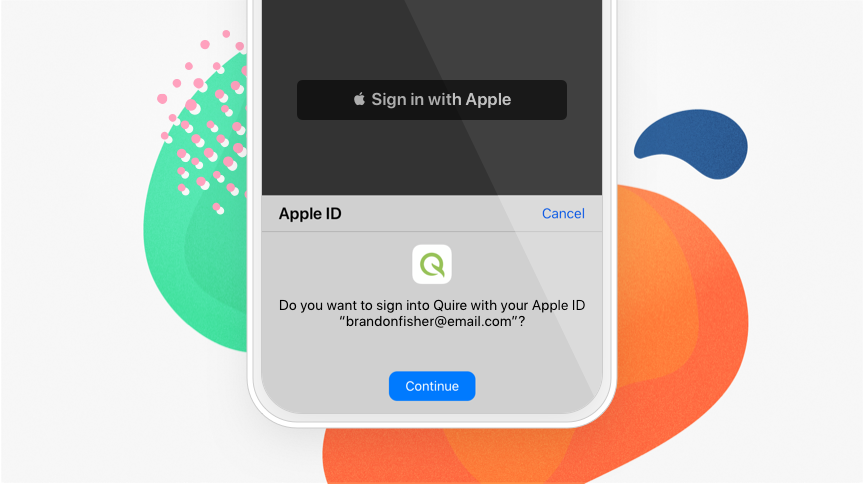
Instead of filling out the traditional forms, simply tap the Sign in (up) with Apple button, review your information, sign in (up) securely with your device passcode, Face ID and Touch ID.
Note: Face ID and Touch ID are only available on Apple devices.
To manage the apps that you use Apple Sign-in, please review this article.
Most people reach for their phone to log in now. Statista reports that mobile devices drive the majority of the world's web traffic, so a fast, private, Face-ID-backed sign-in is exactly the kind of friction to remove.
How do you sign up for Quire with Apple?
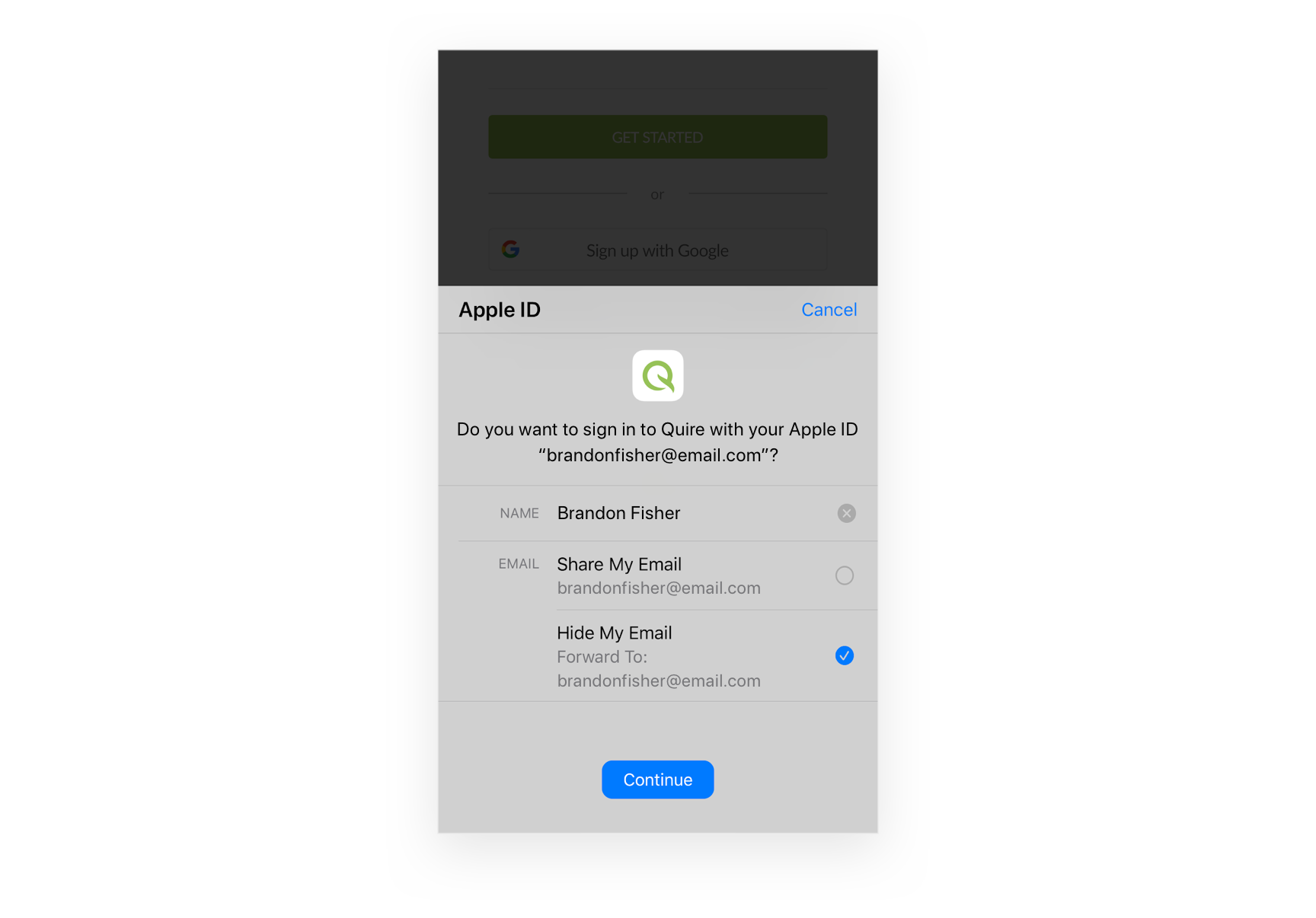
- Tap the Sign up with Apple button on Quire Mobile App or website.
- Choose the email address that you would like to use to sign up for a Quire account.
- Tap Continue and confirm with a quick Face ID, Touch ID, or device passcode.
- You’re ready to use Quire!
Note: Revoking permission for using Apple Sign-in does not delete your Quire account.
Read more on getting Quire on your iPad for a native tablet experience.
When using Apple Sign-in, you can either share your personal email with Quire or hide the email address and share a unique, random address instead. The random email address follows the format <unique-alphanumeric-string>@privaterelay.appleid.com. All of the email communications from Quire will be forwarded to your email address automatically.
If you choose to keep your email address private, note that if other Quire users want to invite or assign a task to you, they have to send the invitation to your random email address provided by Apple, instead of your Apple ID email address.
How do you add Apple Sign-in to an existing Quire account?
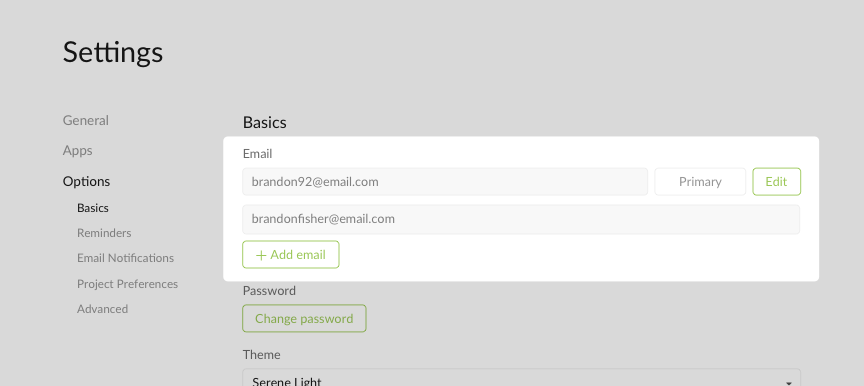
If your current Quire account is signed up with the same Apple ID email address, you can use Apple Sign-in promptly without making any changes.
However, if your Apple ID email address is different from your Quire email address, you have to go to Account Settings and add your Apple ID as the secondary email first. Then you can use Apple Sign-in to access your Quire account.
Apple ID isn't the only Apple integration Quire supports. Once you're signed in, you can also add a task with Siri hands-free.
We hope you enjoy our latest update of Quire! If you have any questions or feedback, reach out to us at [email protected] or tweet us at @quire_io 😍
That’s all for today! We hope you can achieve all of your dreams one day!
Related: Quire 101: Tasks, Subtasks & Projects for Beginners — once you're signed in, this guide walks new users through creating tasks, subtasks, and projects.
How does Sign in with Apple work in Quire?
It is a login method with a privacy twist. Here is what to know.
The private relay is the part worth pausing on. Instead of handing over your real email, Apple generates a random address at privaterelay.appleid.com and quietly forwards everything to your real inbox. You get the convenience of a one-tap login and the privacy of never exposing your actual address to another service. The only gotcha is practical: if a teammate needs to invite you or assign you a task, they have to use that relay address, so it is worth sharing it with the people who need it.
Frequently Asked Questions
What is Sign in with Apple in Quire?
It's a login method that uses your Apple ID, confirmed with Face ID, Touch ID, or your passcode, on both the Quire mobile app and web.
Can I use Apple Sign-in on both mobile and web?
Yes. Once set up, you can use it to log into Quire on iPhone, iPad, or any browser. Face ID and Touch ID only work on Apple devices.
Can I hide my email address when signing up with Apple?
Yes. Apple can share a private relay address instead, and Quire forwards all its emails to your real inbox through that address automatically.
If I hide my email, how do teammates invite me to Quire?
They need to send the invite or task assignment to your Apple-generated relay address, not your real Apple ID email.
Does revoking Apple Sign-in delete my Quire account?
No. It only removes that login method. Your account, projects, and tasks stay intact, and you can sign in another way.